Samsung & LG Smart TV Setup
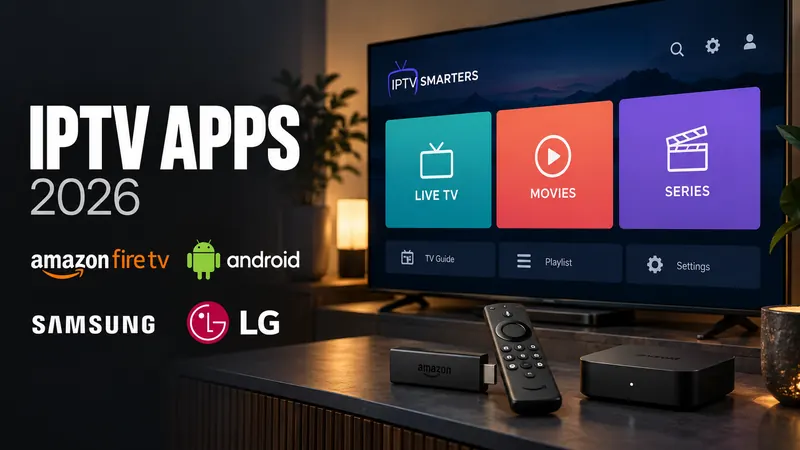
Setting up IPTV on your Smart TV is easy. We recommend two apps: Hot Player (Premium, highly stable) and IPTV Smarters Pro (Free, user-friendly).
Not sure which player suits your device? Compare seven of them in our guide to the best IPTV apps for Firestick, Android and Smart TV.
Hot Player
Offers the best performance for 4K streams. Comes with a 30-day free trial, then about €5 per year or about €11 one-time.
Step 1: Download the App
Go to the App Store on your TV (Samsung Hub or LG Content Store). Search for "HOT PLAYER" and install it.
Step 2: Note Your MAC Address
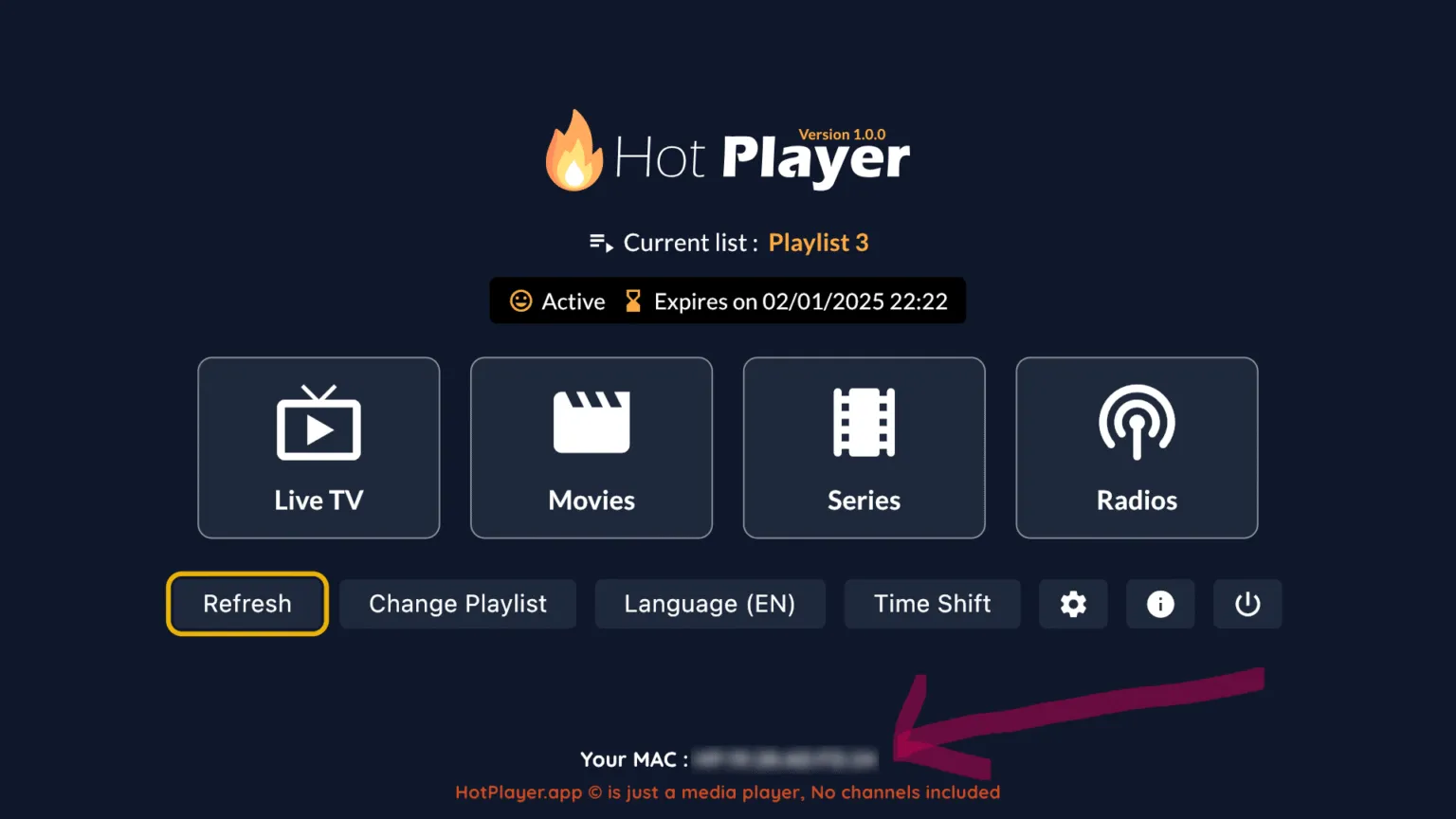
Open the app. On the main screen, you will see a unique code called the MAC Address (e.g., 00:1A:2B:3C:4D:5E). Write this down.
Step 3: Activate Playlist
- On your phone or PC, go to: https://hotplayer.app/upload
- Enter your TV's MAC Address.
- Click Next.
Step 4: Add M3U Link
- Playlist Name: Enter "IPTVpakket".
- M3U URL: Paste the long link we sent you on WhatsApp.
- Click Save.
Step 5: Restart App
Go back to your TV and click Refresh (or restart the app). Your channels will load instantly.
IPTV Smarters Pro
Excellent free alternative with a Netflix-style interface.
Step 1: Download Smarters
Search for "IPTV Smarters Pro" in your TV's app store and install it.
Step 2: Login via Xtream Codes
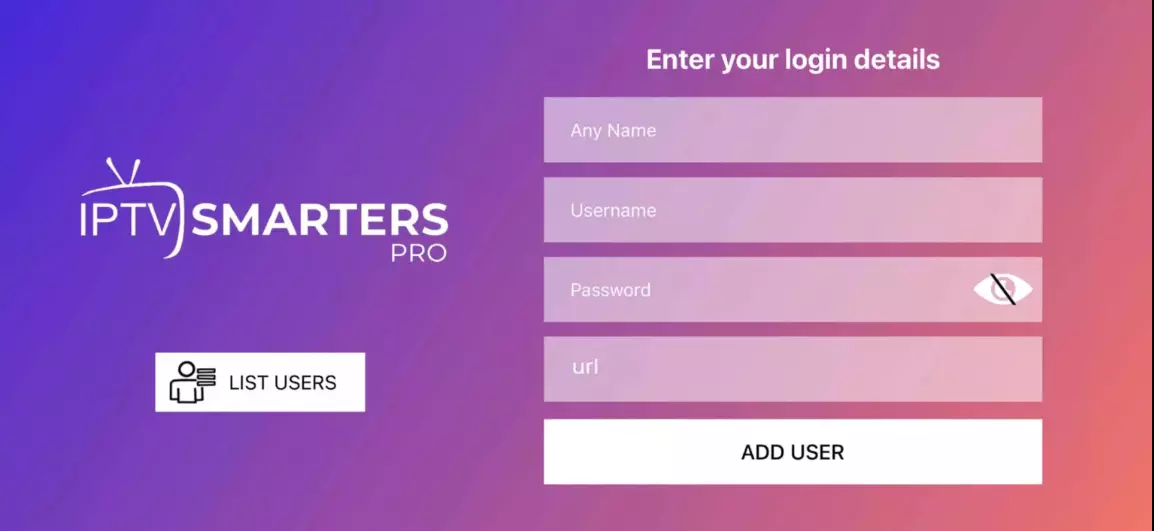
Open the app and select "Login with Xtream Codes API". Enter the details from our WhatsApp message:
- Any Name: IPTVpakket
- Username: (in our WhatsApp message)
- Password: (in our WhatsApp message)
- URL: http://line.url:80
Step 3: Start Watching
Click "Add User". Click on your new profile card. You will see icons for Live TV, Movies, and Series.
Troubleshooting
- Login rejected: copy the details from our message instead of typing them; watch for a space at the end of the password and include
http://and the port in the URL. - Playlist not loading: on Hot Player, check that the MAC Address on hotplayer.app/upload matches the one on your TV exactly, then click Refresh. On Smarters, give the first load a few minutes.
- Buffering after installation: Use a network cable if the device has a port, or move the router closer. HD needs about 10 to 15 Mbps per screen, 4K about 25 Mbps. More help: how to fix IPTV buffering.
Android TV & TV Box Setup
For Android TV devices and TV boxes, we also recommend using Hot Player for its premium performance, or IPTV Smarters Pro as a reliable free alternative.
Hot Player
The premium choice for Android, offering superior stability. Includes a 30-day free trial, then about €5 per year or about €11 one-time.
Step 1: Download the App
You can download Hot Player directly onto your Android device:
https://apk.hotplayer.app
Alternatively, you can use the "Downloader" app on your device and enter the URL above to install the APK.
Step 2: Note Your MAC Address
Open the app once installed. On the main screen, locate the MAC Address (e.g., 00:1A:2B:3C:4D:5E). Write it down.
Step 3: Activate Playlist
- On your phone or computer, visit: https://hotplayer.app/upload
- Enter the MAC Address from your TV screen.
- Click Next.
Step 4: Add M3U Link
- Playlist Name: Enter "IPTVpakket".
- M3U URL: Paste the long M3U link we sent you on WhatsApp.
- Click Save.
Step 5: Refresh and Watch
Return to your Android device and click the Refresh button in the app. Your content will load immediately.
IPTV Smarters Pro
Step 1: Download Smarters Pro
Install it from the Google Play Store on your device. If it isn't listed for your model, download the installer only from the developer's official IPTV Smarters website, never from third-party APK sites: those can carry modified versions.
Step 2: Login via Xtream Codes
Open the app and enter the login details we sent you on WhatsApp:
- Any Name: IPTVpakket
- Username: (in our WhatsApp message)
- Password: (in our WhatsApp message)
- URL: http://line.url:80
Step 3: Start Streaming
Click ADD USER. After a few seconds, click on the "Live TV", "Movies", or "Series" icons.
Troubleshooting
- Login rejected: paste the username, password and URL exactly as sent; the URL needs
http://and the port number. - Playlist not loading: close the app fully (Settings, Apps, Force stop), reopen it and wait. Still empty? Remove the playlist and add it again.
- Buffering after installation: Use a network cable if the device has a port, or move the router closer. HD needs about 10 to 15 Mbps per screen, 4K about 25 Mbps. More help: how to fix IPTV buffering.
Amazon Firestick Installation
Firestick is one of the best devices for IPTV. Some players, such as TiviMate, are in the Amazon Appstore. Hot Player and IPTV Smarters Pro usually are not, so we install them with the "Downloader" app.
Prerequisite: Enable Developer Options
Before we start, you must allow your Firestick to install apps from unknown sources.
- Go to Settings > My Fire TV.
- Select Developer Options.
- Turn ON "Install Unknown Apps" (or "Apps from Unknown Sources").
- If you don't see Developer Options: Go to About, click on Fire TV Stick 4K (or your device name) 7 times quickly until it says "You are now a developer".
Step 1: Install the Downloader App
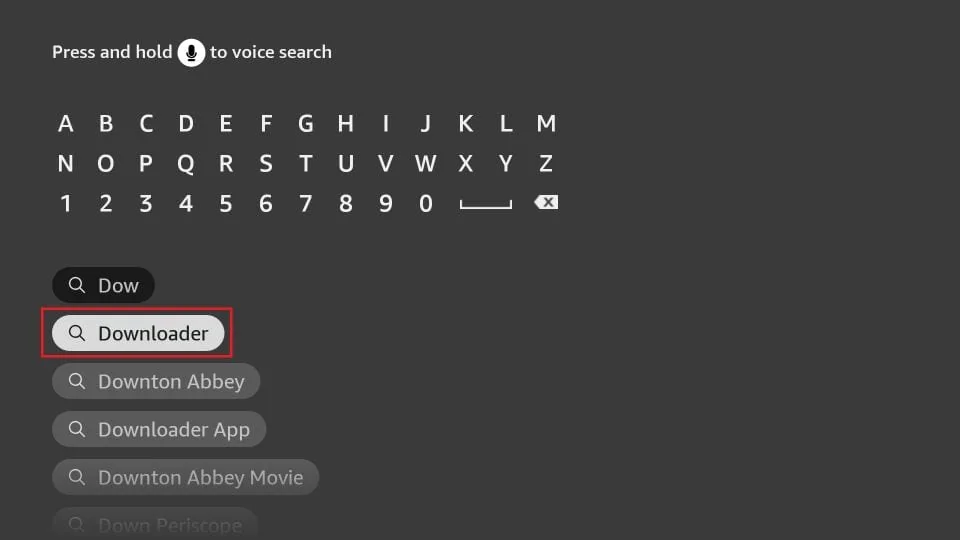
1. Go to the Firestick Home Screen and click the Search (Magnifying Glass) icon.
2. Type "Downloader".
3. Select the orange Downloader app and click Download or Get.

Step 2: Install Hot Player with Downloader
1. Open the Downloader app.
2. In the URL box, type the official Hot Player download address: apk.hotplayer.app
3. Click Go. The app starts downloading automatically.

4. When the download finishes, click Install, then Open.
Step 3: Activate Your Playlist
1. Open Hot Player and write down the MAC Address shown on the main screen.
2. On your phone or computer, go to hotplayer.app/upload and enter that MAC Address.
3. Add a playlist named "IPTVpakket" and paste the M3U link from our message. Click Save.
4. Back on the Firestick, click Refresh. Your channels, movies and series load.
Troubleshooting
- Download blocked: check that "Install unknown apps" is switched on for Downloader under Developer Options, and that you typed the address without spaces.
- Playlist not loading: make sure the MAC Address you entered online is the one shown in Hot Player on this Firestick, then choose Refresh.
- Buffering after installation: The Firestick has no network port, so keep the router close by or use Amazon's Ethernet adapter. HD needs about 10 to 15 Mbps per screen, 4K about 25 Mbps. More help: how to fix IPTV buffering.
Setup for iPhone, iPad & Apple TV
For Apple devices, the best free app is Smarters Player Lite. It's the official iOS version of IPTV Smarters Pro and works perfectly on iPhone, iPad, and Apple TV.
Step 1: Download Smarters Player Lite
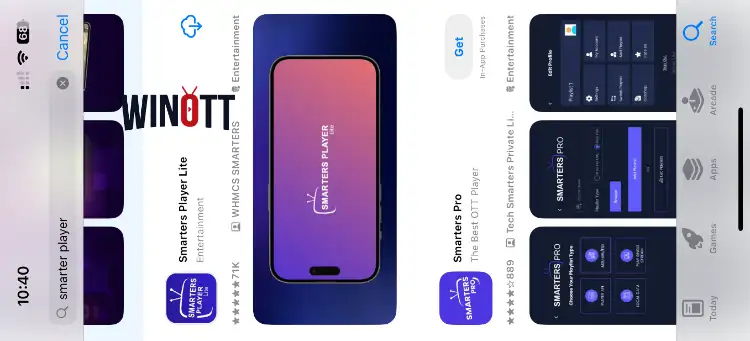
Open the App Store on your iOS device or Apple TV. Search for "Smarters Player Lite" and download it.
Step 2: Launch & Accept Terms
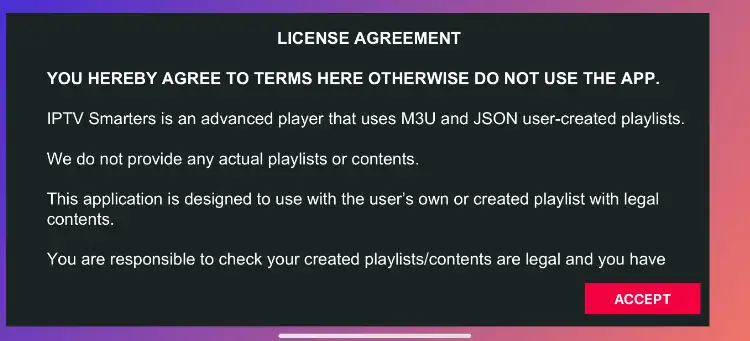
Open the app. You will see a Terms of Use screen. Click Accept to continue.
Step 3: Login with Xtream Codes
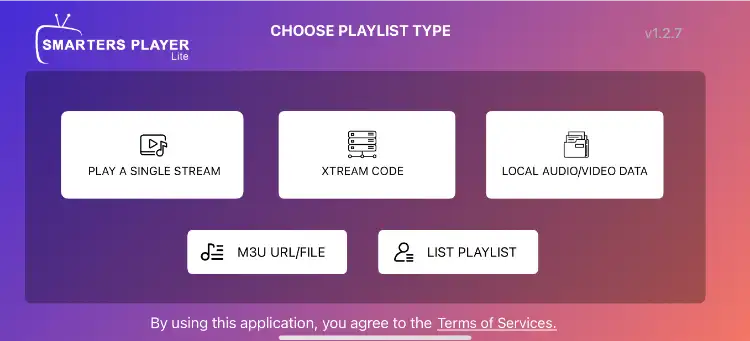
You will see a login screen. Select the option "Login with Xtream Codes API". Enter your subscription details:
- Any Name: IPTVpakket
- Username: (in our WhatsApp message)
- Password: (in our WhatsApp message)
- URL: http://line.url:80
Step 4: Start Watching
Click Add User. Once loaded, you will see the main dashboard. Tap on Live TV to see your channels.
Troubleshooting
- Login rejected: choose "Login with Xtream Codes API", paste the details from our message and keep
http://and the port in the URL. - Playlist not loading: give Smarters Player Lite a few minutes on first launch, then close it fully by swiping it away and reopen it.
- Buffering after installation: Use a network cable if the device has a port, or move the router closer. HD needs about 10 to 15 Mbps per screen, 4K about 25 Mbps. More help: how to fix IPTV buffering.
Setup for Windows PC
For Windows users, we recommend MyIPTV Player. It's a lightweight, reliable media player available directly from the Microsoft Store.
Step 1: Download MyIPTV Player
Open the Microsoft Store on your PC. Search for "MyIPTV Player" and install the app.
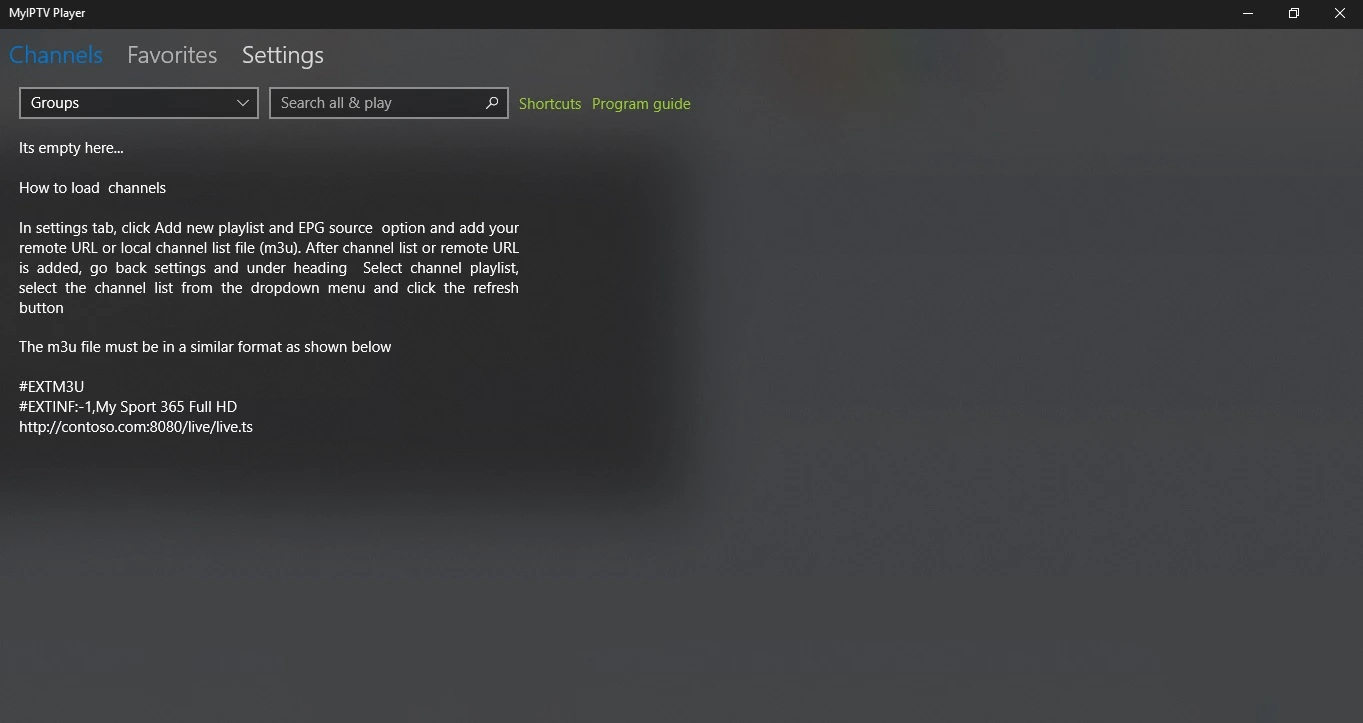
Step 2: Access Settings
Open the app. You will see the main dashboard. Click on the Settings tab at the top of the screen.
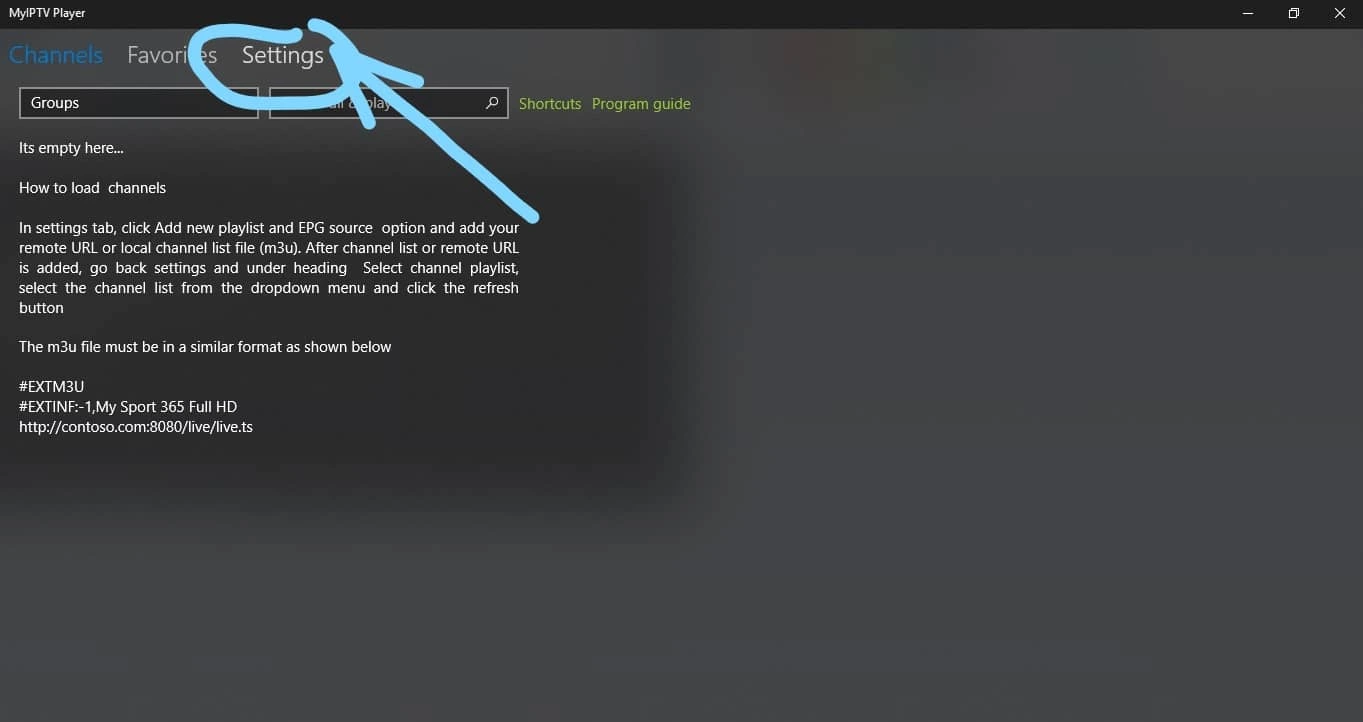
Step 3: Add New Playlist
In the Settings menu, click on "Add new playlist and EPG source".
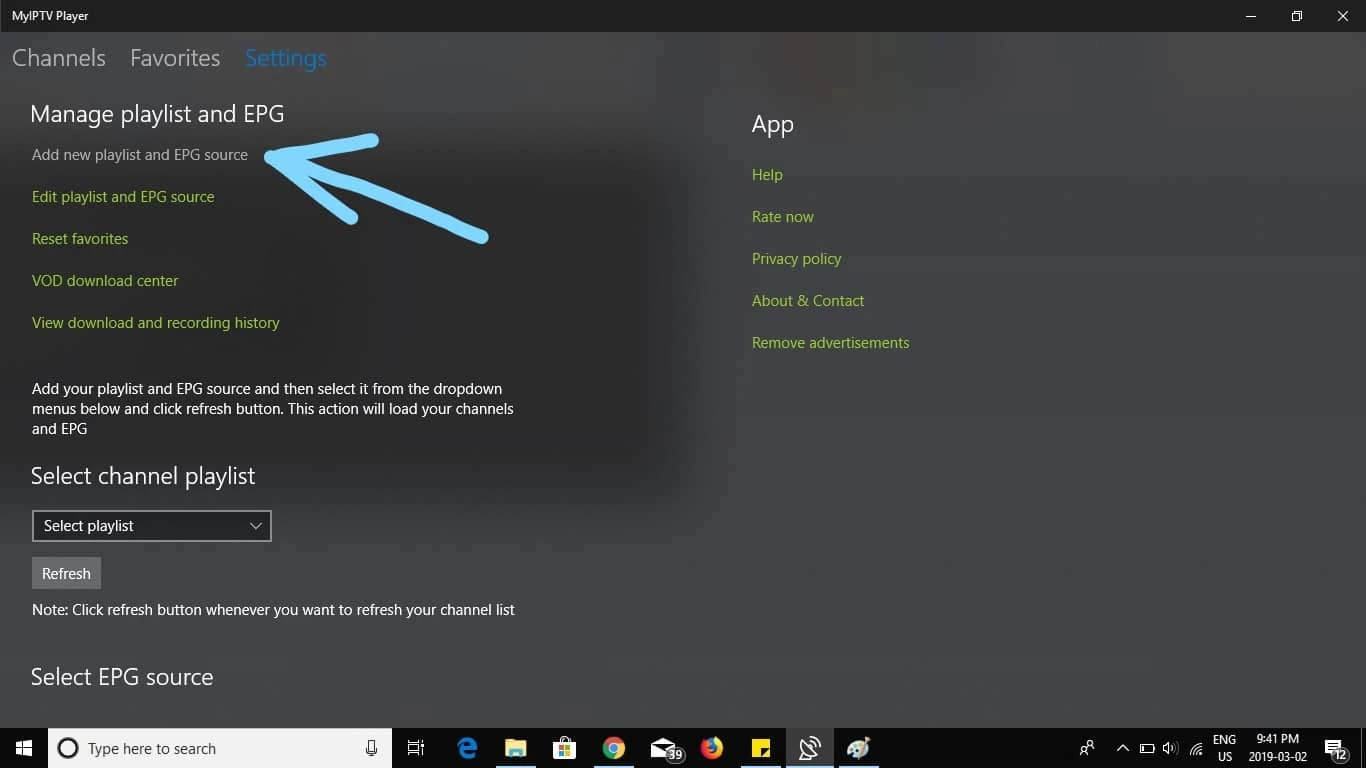
Step 4: Enter Playlist Details
Under the "Remote Channel List" section:
- Name: Type "IPTVpakket".
- Source (URL): Paste the M3U link we sent you on WhatsApp.
Click Add remote list.
Step 5: Select Playlist
Go back to the Settings menu. Under the "Select Channel Playlist" dropdown, verify that "IPTVpakket" is selected. click Refresh.
Setup for MAG Box & Formuler Devices
MAG boxes and Formuler devices use a different connection method called "Portal URL" (Stalker Portal). You will need to provide us with your device's MAC Address to activate it.
Step 1: Find Your MAC Address
Turn on your MAG box. Go to Settings > System Info > Device Info.
Look for the MAC Address. It starts with 00:1A:79.... Write this down.
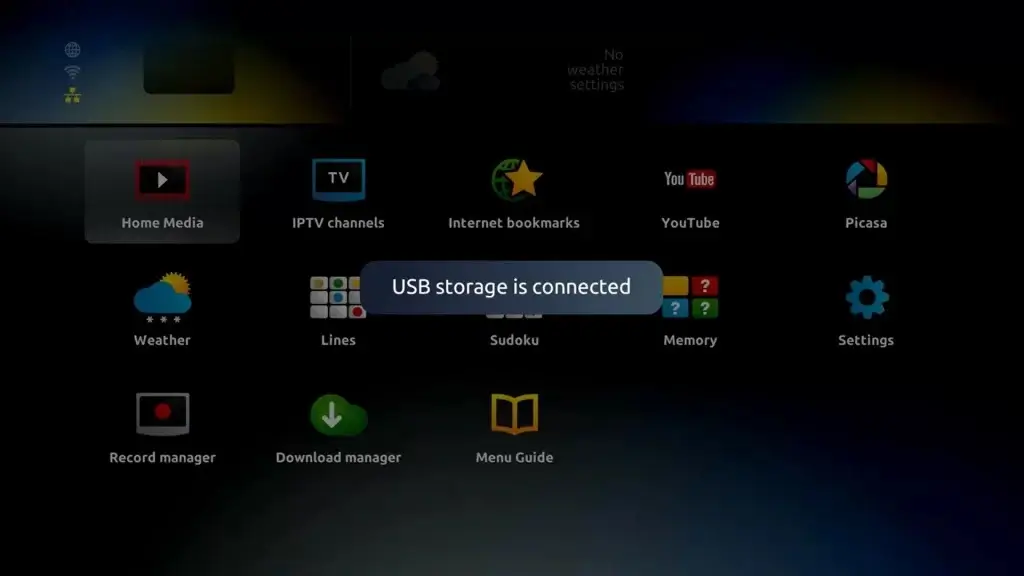
Step 2: Configure Portal URL
Go to Settings > System Settings > Servers > Portals.
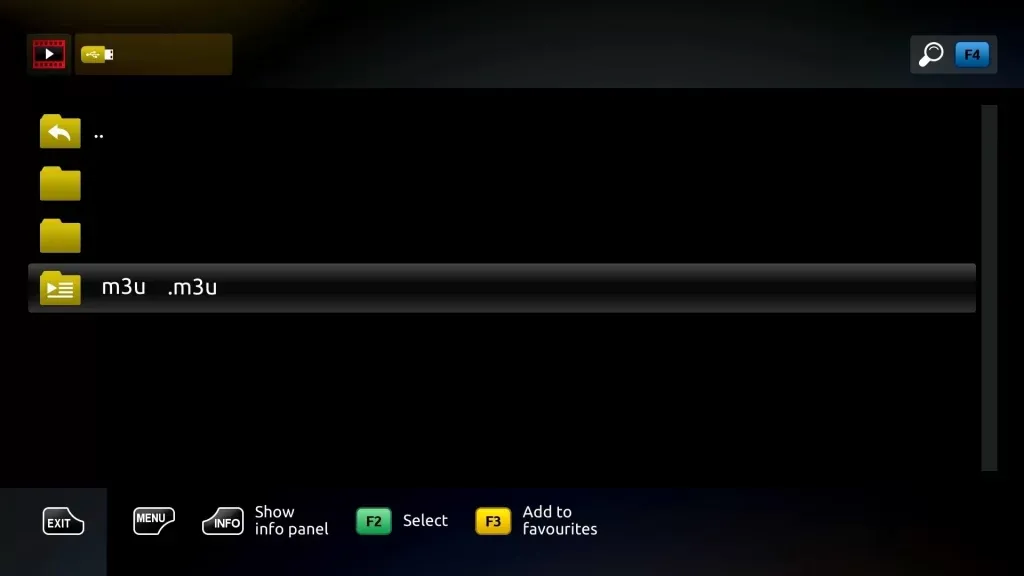
Step 3: Enter Portal Details
You will see settings for Portal 1 and Portal 2. Use Portal 1:
- Portal 1 Name: IPTVpakket
- Portal 1 URL: http://line.url:80/c/ (the exact URL is in our WhatsApp message)
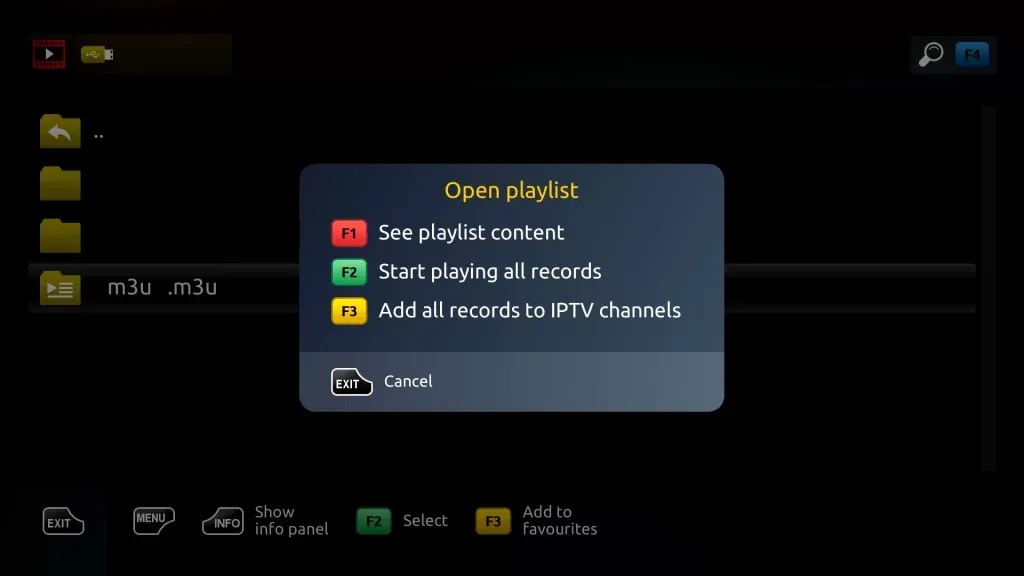
Step 4: Save and Reboot
Press "OK" to save. Go to General > Restart Portal or unplug your device.